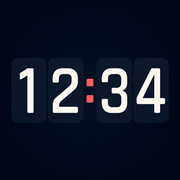
Choose a clock face
Open Settings → Clock to choose Digital, Flip or Focus. You can also use the Face control or swipe horizontally across an unlocked clock.
Digital is free. Flip and Focus require Clock Pro. If swiping has no effect, unlock the controls by pressing and holding the clock first.
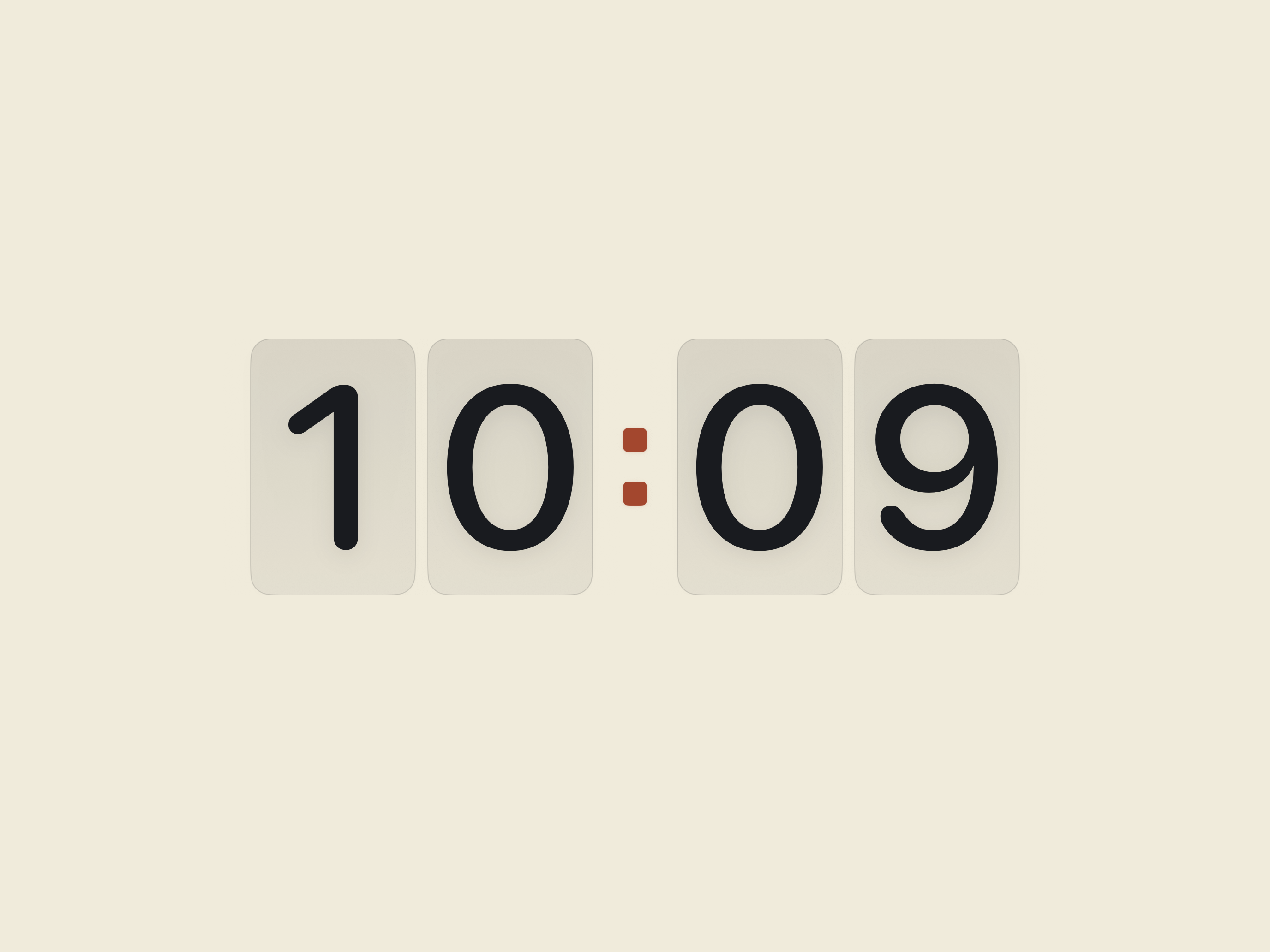
Choose a palette or your own colors
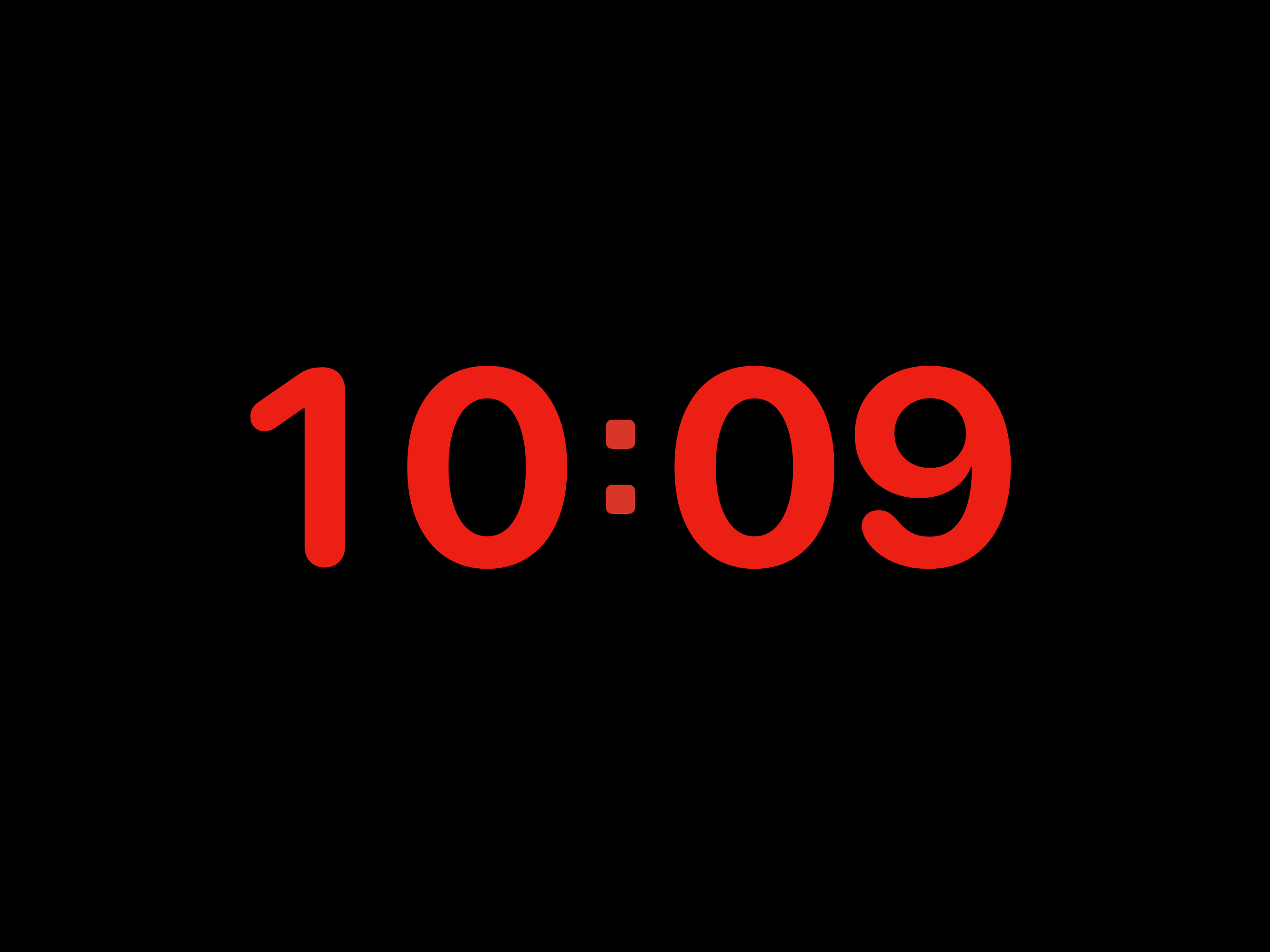
In Settings → Appearance, choose a color style. Midnight is free; Paper and Night Red are part of Clock Pro.
Clock Pro also lets you choose separate text, background and colon colors. The app warns when contrast is low and offers controls to improve readability. Restore Preset Colors returns to the selected palette’s defaults.
With Clock Pro, save up to five named color settings in Settings → Appearance. A saved setting includes the palette and text, background and colon colors, not your message styling. Apply a saved setting from Appearance or its quick button’s long-press menu. Editing the current colors does not overwrite a saved setting.
Show the details you need
Choose 24-Hour Time and Show Seconds in Settings → Clock, or in the Face button’s long-press menu. Date has its own Settings page for visibility and size. These options are free.
Tap Date once to select its size slider. Another tap shows or hides it. Changing a hidden item’s size does not make it visible.
Make the display comfortable
Read the clock from the distance you actually use it. Adjust the size, reduce optional details if space is tight and lower device brightness in a dark room.
For long sessions, use Burn-In Protection in Display settings. If you prefer quieter transitions, turn on Reduce Motion in your device’s accessibility settings.
Related help
Still need a hand?
Tell us your device model, iOS or iPadOS version, app version and what happened. A screenshot can help. Leave out passwords, verification codes and private information.
Email support