Open the clock
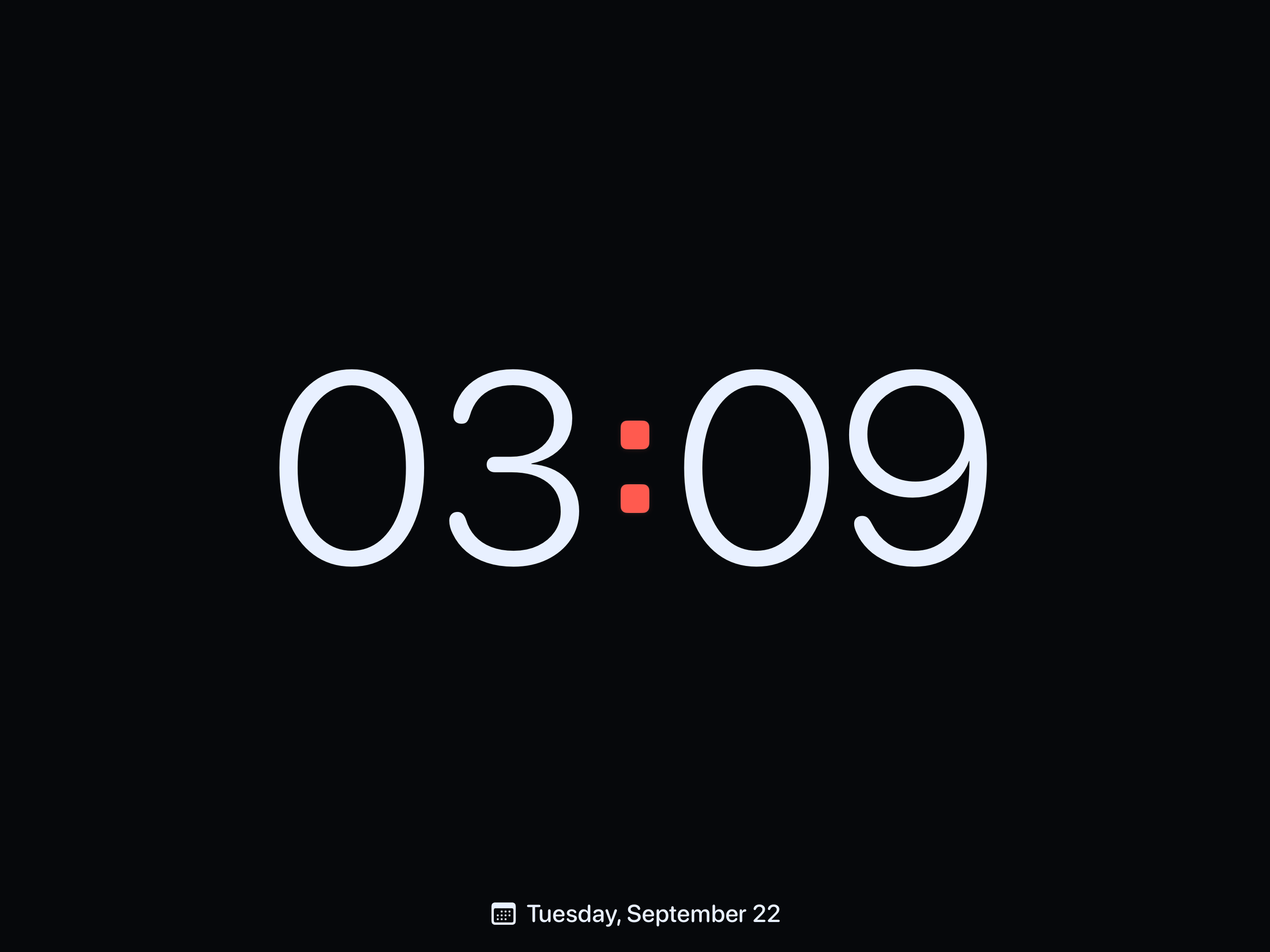
Open Long Lasting Clock and the time appears immediately. The app follows your device’s time zone by default. It works on iPhone and iPad with iOS or iPadOS 16 or later.
Download Long Lasting Clock from the App Store using the link at the top of this page. Digital with the Midnight color style is included free.
Choose a comfortable size
- Place the device on a stable stand and rotate it to portrait or landscape.
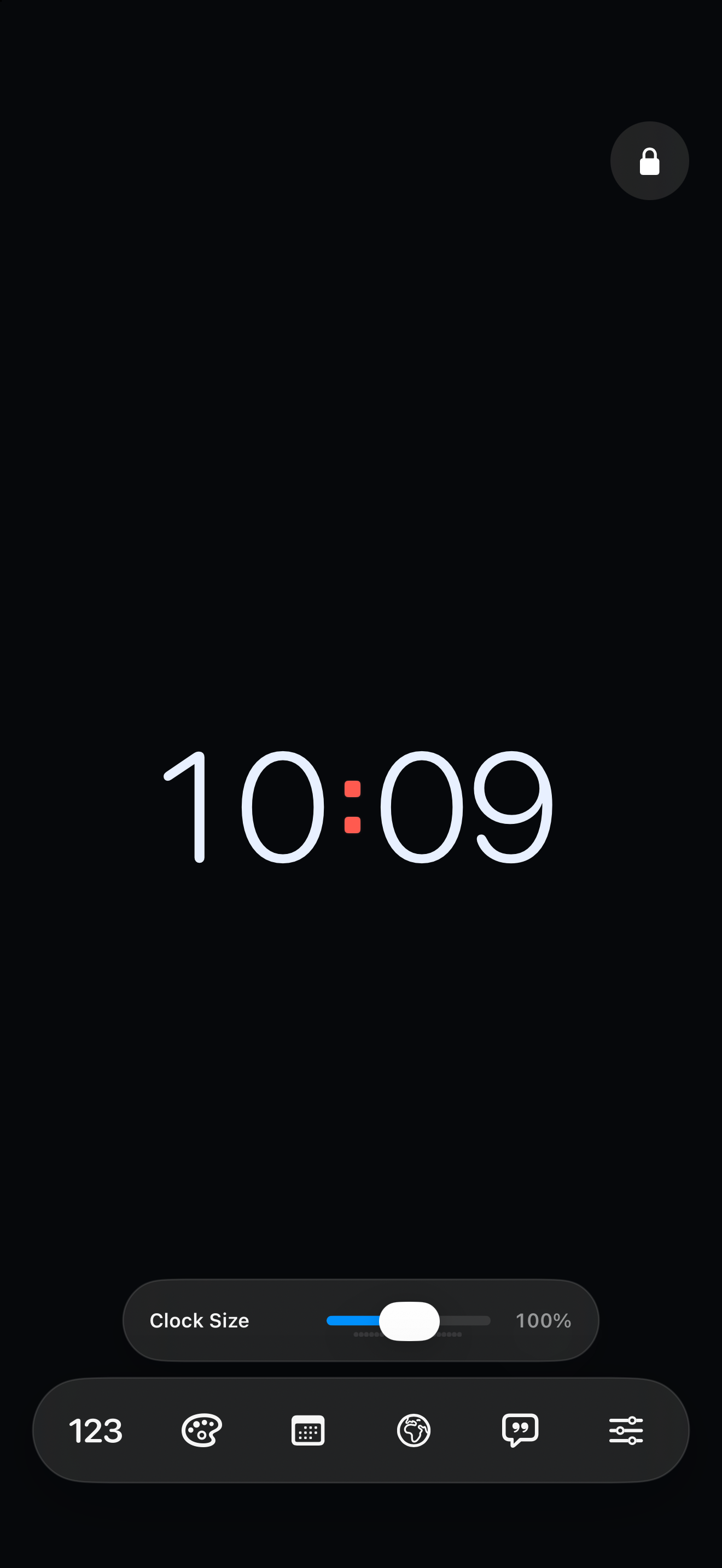
- Tap the clock to reveal the quick controls.
- Select Face, then move the size slider until the time is easy to read from where you will sit or stand.
One size is used for both orientations by default. To keep different sizes, open Settings → Display and enable Separate Portrait and Landscape Sizes. Adjust the slider in each orientation.
Keep the display on
Open Settings → Display and enable Keep Screen Awake. It works while the clock app is open and active. Leaving the app or locking the device ends that behavior.
For longer sessions, keep Burn-In Protection enabled. It moves the clock subtly over time, but cannot guarantee protection from screen wear. Use a comfortable device brightness and expect more battery use while the screen stays on.
Hide or lock the controls
In Settings → Display, choose Automatic, Always Visible or Tap to Show. Tap the separate lock at the top right to prevent accidental changes. Touch and hold an empty area of the clock screen to unlock, or use the VoiceOver unlock action.
This locks app controls, not the device or app switching. The clock must stay open to display the time.
Practise without changing your setup
The interactive Quick Guide has five exercises: reveal the controls, resize the date, open a long-press menu, swipe between faces, and lock/unlock. Next and Skip let you move on without completing a gesture. Open it again from Settings → Show Quick Guide.
Practice uses temporary settings. Your saved preferences and presets stay unchanged. Free users can preview Pro faces during the guide; this does not unlock them for normal use.
Related help
Still need a hand?
Tell us your device model, iOS or iPadOS version, app version and what happened. A screenshot can help. Leave out passwords, verification codes and private information.
Email support