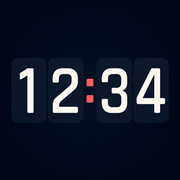
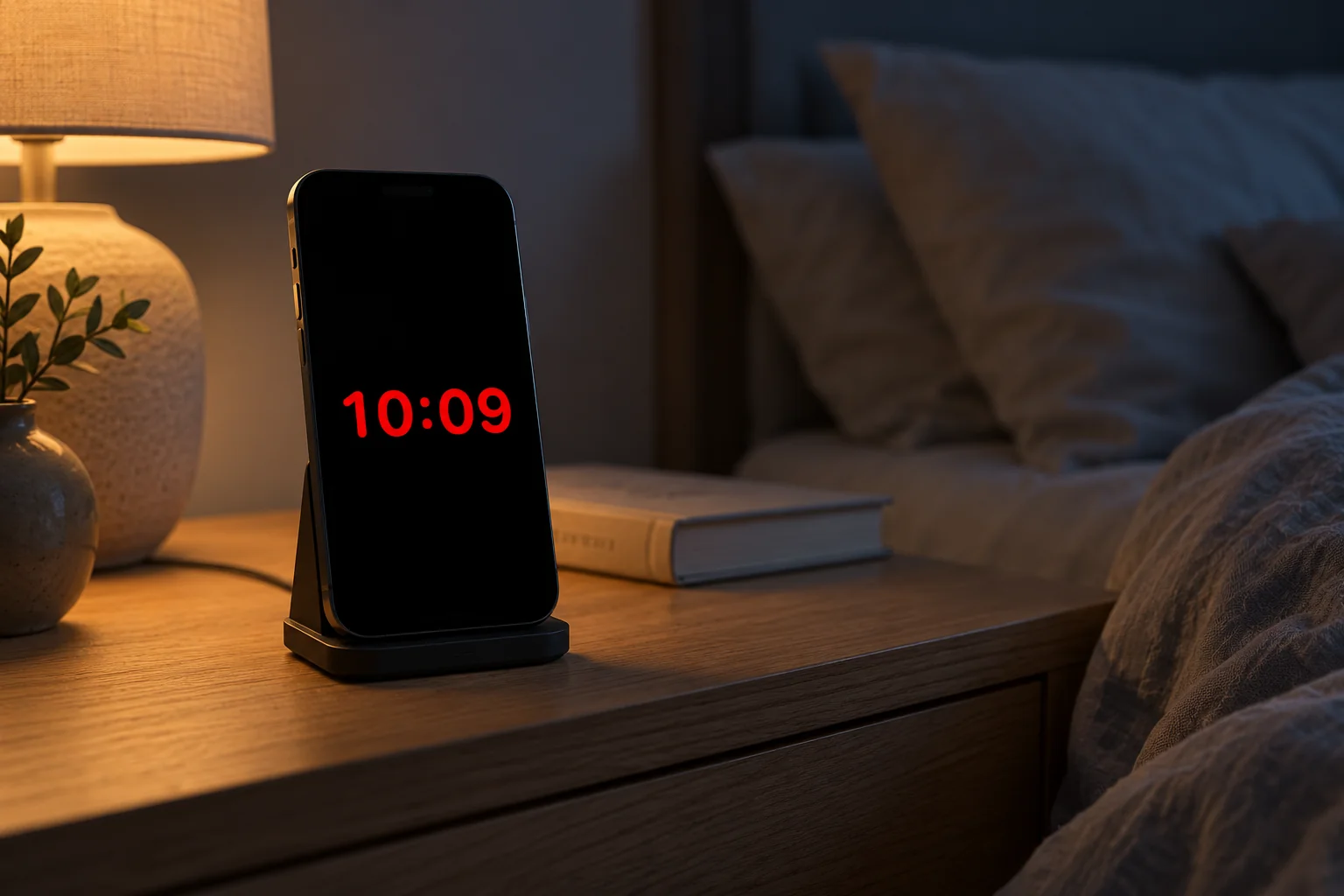
Start with the included clock
Digital with Midnight gives you light digits on a dark background without a purchase. Place your iPhone on a stable stand and adjust the clock size from the distance at which you will read it.
Quick start
- Open Long Lasting Clock and place the device on a stable stand.
- Tap the clock, then tap Face to select the clock size control. Adjust the slider from your usual viewing distance.
- Open Settings → Display and enable Keep Screen Awake. Leave the app open.
Recommended setup
With Clock Pro, open Settings → Appearance and choose Night Red. Hide the date and seconds for a simpler display. Lower brightness in Control Center before settling down. Without Pro, start with Digital and Midnight.

Good to know
Enable Keep Screen Awake and leave Long Lasting Clock in the foreground. Locking the device or switching apps stops this full-screen clock from being visible. It is not an alarm clock or a replacement for Apple’s StandBy. Burn-In Protection can reduce static exposure, not guarantee that burn-in will never occur.
Related help
Still need a hand?
Tell us your device model, iOS or iPadOS version, app version and what happened. A screenshot can help. Leave out passwords, verification codes and private information.
Email support