Show the controls
Open the clock on Apple TV. Press a direction on the remote to reveal the controls.
Write a message
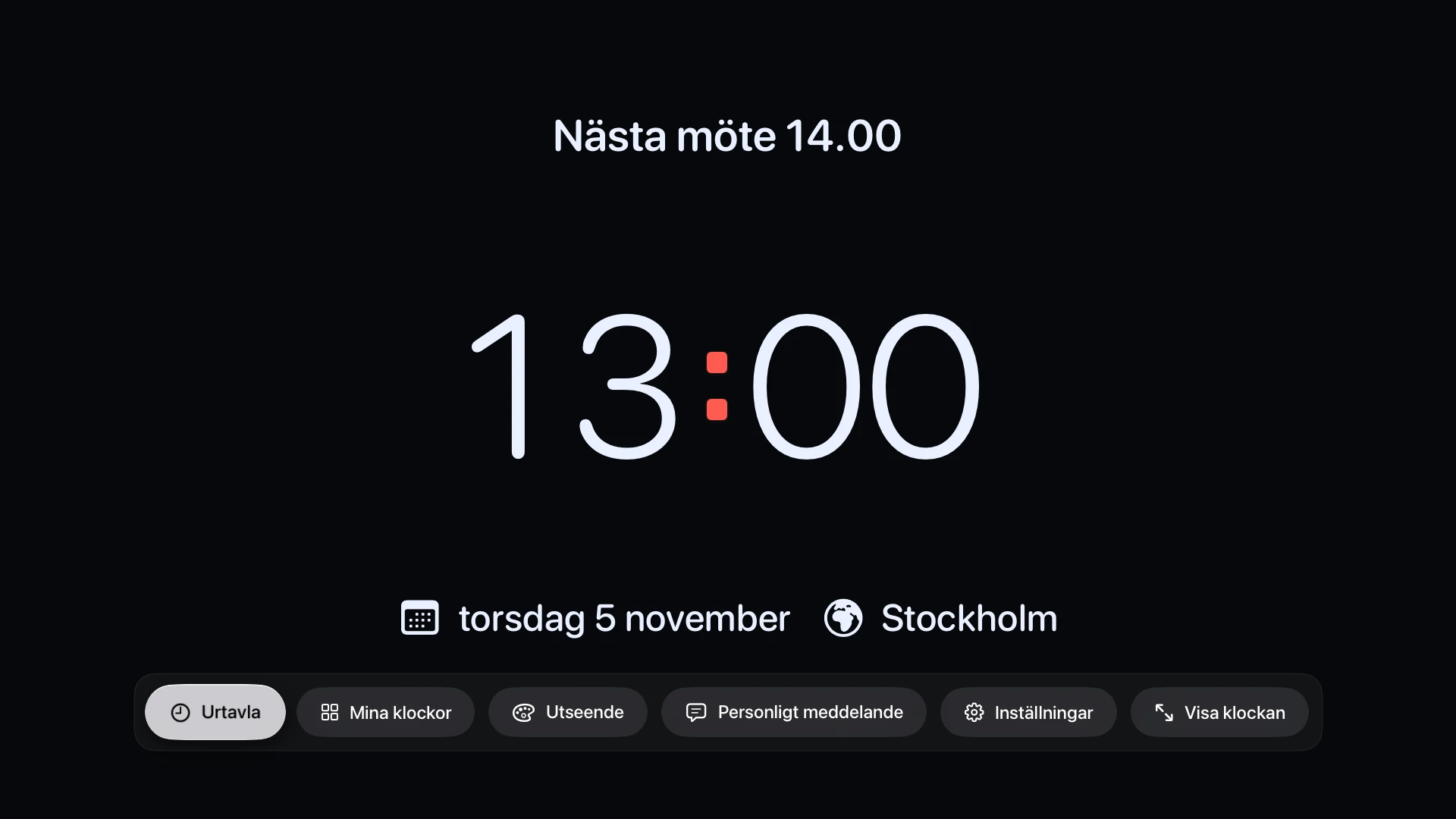
Select Personal Message. Type a short line or pick a suggestion. The text appears automatically. Close settings to see how it reads across the room.
Write and show a message for free. Clock Pro adds fonts, colors, size controls, and saved messages.
Return to the clock
Close the settings. Press Play/Pause on the clock to hide or show the controls. Check that the text is easy to read from the back of the room.
Related help
Set up a full-screen clock on iPad or iPhoneGive your desk, nightstand or shared space a clear view of the time. Set the size, keep the screen awake and leave the controls out of the way.Getting started on MacKeep a clear clock beside your work, give it the whole screen, or add a widget to your desktop. Move the pointer over the clock window to reveal its controls.Choose your clock face, colors and display detailsMake the clock comfortable to read in your space, from a simple Digital display to the Flip and Focus faces in Clock Pro.Time zones, saved places and personal messagesWrite and show a message for free. Clock Pro adds fonts, colors, size controls, and saved messages.Troubleshooting and Clock ProFind a hidden control, correct the time or check Pro access. Start with the symptom you see on your device.Turn an older iPad into a desk clockKeep the time beside your work, without another window on your main screen.A night clock for your iPhoneSee the time at your bedside with large digits and a brightness you find comfortable.A large clock for meetings and classroomsGive everyone the same view of the time on an iPad, without using your presentation screen.
Still need a hand?
Tell us your device model, system version, app version and what happened. A screenshot can help. Leave out passwords, verification codes and private information.
Email support