Make it yours. See every change.
- Open the clock. Move the pointer over its window to reveal the settings button.
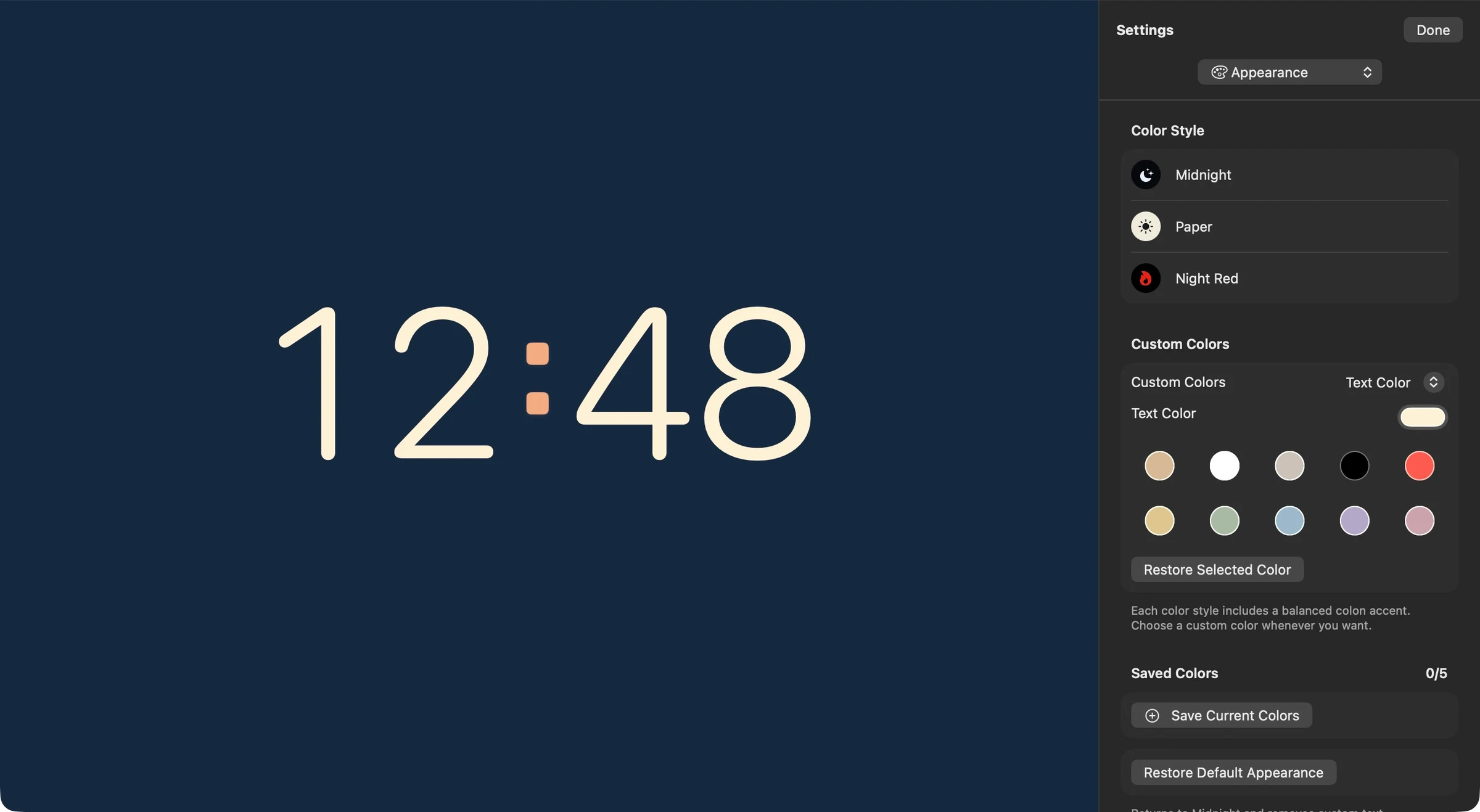
- Open Settings and choose Clock, Date, Location, Message, Appearance or Display. Changes appear in the clock as you make them.
Two windows. Your own time zones.
Open another clock with Command-N. Each window has its own appearance and settings. With Clock Pro, keep Stockholm and New York side by side at the same moment.
Use the View menu to enter full screen. Move the pointer to the top edge when you need the window controls.
Time on your desktop.
To add the widget, right-click the desktop, choose Edit Widgets and search for Long Lasting Clock. Choose a size, then edit the widget to select the clock and seconds.
Mac app: macOS 14 or later. Desktop widget: macOS 15 or later.
If you delete a saved clock used by a widget, edit the widget and choose another clock.
Related help
Set up a full-screen clock on iPad or iPhoneGive your desk, nightstand or shared space a clear view of the time. Set the size, keep the screen awake and leave the controls out of the way.Start using the clock on Apple TVOn Apple TV, add a welcome or tell everyone when the break ends.Choose your clock face, colors and display detailsMake the clock comfortable to read in your space, from a simple Digital display to the Flip and Focus faces in Clock Pro.Time zones, saved places and personal messagesWrite and show a message for free. Clock Pro adds fonts, colors, size controls, and saved messages.Troubleshooting and Clock ProFind a hidden control, correct the time or check Pro access. Start with the symptom you see on your device.Turn an older iPad into a desk clockKeep the time beside your work, without another window on your main screen.A night clock for your iPhoneSee the time at your bedside with large digits and a brightness you find comfortable.A large clock for meetings and classroomsGive everyone the same view of the time on an iPad, without using your presentation screen.
Still need a hand?
Tell us your device model, system version, app version and what happened. A screenshot can help. Leave out passwords, verification codes and private information.
Email support